

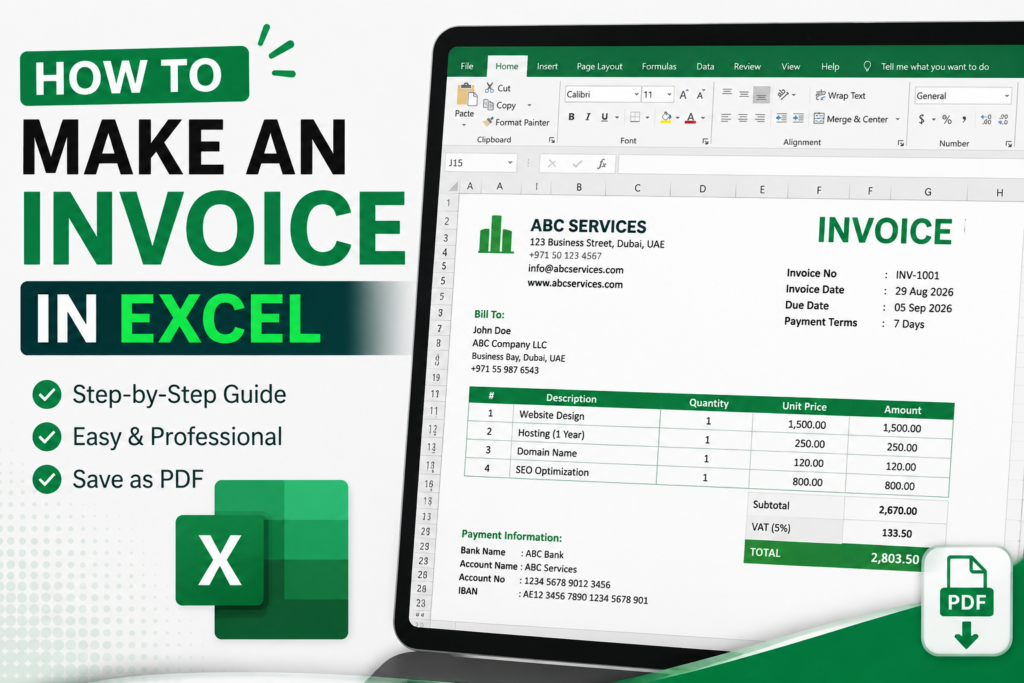
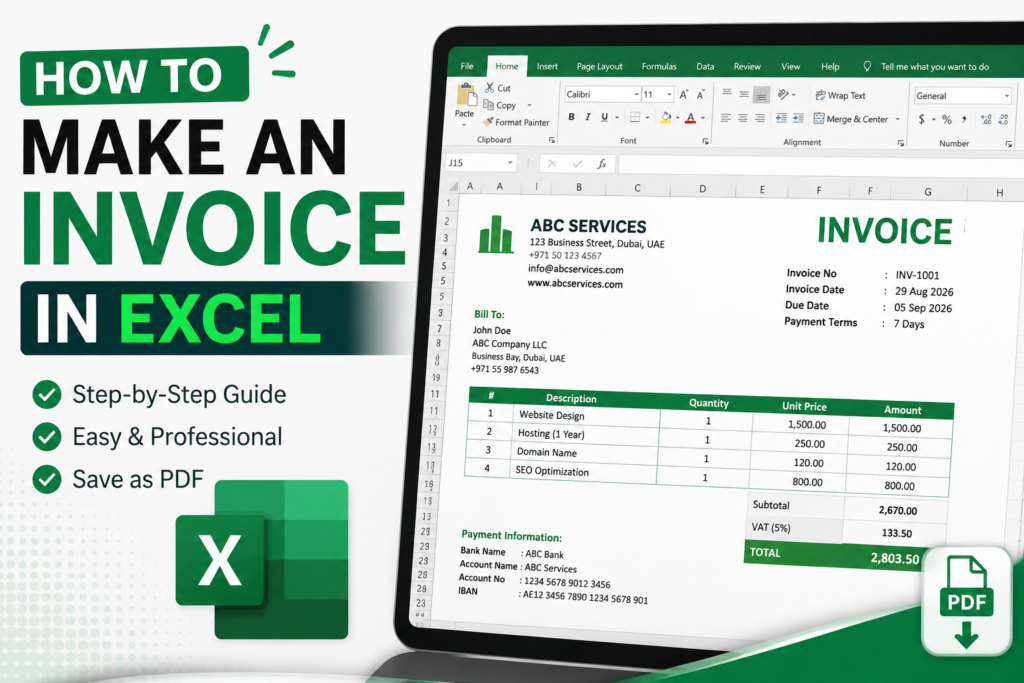
How to Make an Invoice in Excel A Step by Step Guide
Excel helps you create invoices without having to buy expensive accounting software. Excel lets you make an invoice template put in your business details calculate totals automatically and save the invoice as a PDF.
If you own a business offer services work as a freelancer or sell items learning how to make an invoice in Excel can help you stay organized with your billing.
In this guide we will show you how to create an invoice in Excel .
What Is an Invoice?
An invoice is a paper that a business or someone who offers a service sends to a customer to ask for money for things or work.
A regular invoice has:
-
- Business name and contact details
-
- Customer details
-
- Invoice number
-
- Date of the invoice
-
- Description of the things or services
-
- Amount
-
- Price per unit
-
- Total before tax
-
- Tax or VAT
-
- Discount if there is one
-
- total
-
- Conditions for paying
-
- How to pay
A well made invoice helps your customer know what they are being asked to pay.
How to Make an Invoice in Excel
You can make an invoice in Excel by starting with a sheet and building the layout yourself.
Do these steps.
Step 1: Open Microsoft Excel
Open Excel on your computer. Start a blank file.
You can also use an Excel invoice template if you want to save time.
For an invoice though starting with a sheet gives you more control, over the design.
Step 2: Add Your Business Information
At the top of the invoice write your business details.
For example:
ABC Services LLC
You can also add your company logo if you have one.
Your business information should be easy to see so the customer knows who sent the invoice.

Step 3: Add an “INVOICE” Heading
Put an INVOICE heading near the top of the sheet.
You can make it:
-
- Bold
-
- Bigger than the text
-
- Centered or on the right side
-
- Clearly different from the business information
- This shows away what the paper is, for.

Step 4: Add Invoice Details
Create a section for important invoice information.
For example:

Using a unique invoice number for every invoice makes it easier to track payments and records.
Step 5: Add Customer Information
Create a section for the customer’s details.
You can include:
Bill To:
Customer Name
Company Name
Address
Phone Number
Email Address
Make sure the customer’s information is accurate before sending the invoice.

Step 6: Create the Invoice Item Table
The main part of your invoice should contain a table listing the products or services provided.
A basic structure could look like this:

The Amount column should be calculated automatically.
Step 7: Calculate the Subtotal
After listing your products or services, calculate the subtotal.

Step 8: Add Tax or VAT
If you need to charge tax or VAT, add it below the subtotal.
For example:

You should use the tax rate that applies to your business and location.
Step 9: Calculate the Grand / Final Total
The final total should clearly show the amount the customer needs to pay.
For example:
=Subtotal+VATIf the subtotal is in cell D17 and VAT is in D18:
=D17+D18Make the TOTAL amount larger or bold so it is easy to find.

Step 10: Add Payment Information
At the bottom of the invoice include the information your customer needs to make the payment.
Depending on your business this could include:
-
- Bank name
-
- Account name
-
- Account number
- IBAN

You can also add payment instructions or terms.
For example:
Payment Terms: Payment is due within 7 days from the invoice date.
At the End you Step will ad youe company Info in Footer like
- Phone Numbers
- Office Address
Format Your Excel Invoice
make your invoice look professional.
You can improve the design by:
-
- Using fonts
-
- Adding borders to the item table
-
- Adjusting column widths
-
- Using bold headings
-
- Aligning prices to the right
-
- Adding your company logo
-
- Using appropriate spacing
-
- Making the total clearly visible
-
- Avoid adding too many colors or unnecessary graphics.
A simple clean invoice is usually easier for customers to read.
Step 12: Set the Page Layout
Before printing or exporting your invoice check how it will appear on a page.
In Excel go to the Page Layout settings and check:
-
- Paper size
-
- Orientation
-
- Margins
-
- Print area
-
- Scaling
For invoices A4 in portrait or landscape orientation can work well depending on the layout.

Use Print Preview before sending the invoice to your customer.
Step 13: Save the Invoice as a PDF
Once your invoice is complete you can. Export it as a PDF.
PDF is useful because it helps preserve the invoices formatting when you send it to a customer.
A common workflow is:
Excel → Save/Export → PDF → Send to Customer
Keep the Excel file as your editable copy.

How to Create an Invoice Template, in Excel
If you create invoices regularly you don’t need to build an invoice every time.
Instead create a template.
Your template can contain:
-
- Company information
-
- Logo
-
- Invoice layout
-
- Formulas
-
- Tax calculation
-
- Payment terms
-
- Customer information fields
-
- Product/service table
Then whenever you receive an order or complete a service simply make a copy of the template and update the details.
This can save time.
Example of a Simple Excel Invoice
A invoice could be structured like this:
YOUR COMPANY NAME
Common Mistakes When Making an Invoice in Excel
Even a simple invoice can contain mistakes. Watch out for these common problems.
-
- Forgetting the invoice number
Every invoice should have a unique reference number so you can track it later.
-
- Incorrect formulas
Always check your quantity, unit price, subtotal, tax, and total calculations.
-
- Missing customer information
Make sure the customer’s name and billing information are correct.
-
- Forgetting tax or VAT
If your business is required to charge tax or VAT, make sure it is calculated correctly.
-
- Poor formatting
An invoice that is difficult to read can create unnecessary confusion.
-
- Not checking the PDF
Always preview your invoice before sending it. Check that tables, totals, logos, and page breaks look correct.
-
- Overcomplicating the invoice
You don’t need dozens of design elements. Keep the document clear and professional.
Excel Invoice vs Online Document Editor
Excel is excellent when you need automatic calculations and structured spreadsheets.
However, not every invoice requires a spreadsheet.
If your invoice is mostly text, tables, company information, payment terms, and formatting, an online document editor can sometimes be more convenient.
For example, you can create a professional invoice layout using a browser based editor, add your company information and service table, and prepare the finished document for PDF export.
WorkPad354 is an online document editor that lets you create and format documents directly in your browser without installing a desktop word processor.
You can use it for documents such as invoices, quotations, reports, resumes, letters, and other business documents.
Can You Make an Invoice Without Excel?
Yes.
Excel is only one option for creating an invoice.
Depending on what you need, you can use:
Microsoft Excel
Microsoft Word
Google Docs
Online document editors
Accounting software
Invoice generators
For simple service invoices, a document editor may be enough. For invoices that require extensive calculations, inventory tracking, or accounting functions, spreadsheet or accounting software may be more appropriate.
Frequently Asked Questions
Can I create an invoice in Excel for free?
Yes. If you already have access to Excel, you can create an invoice from a blank spreadsheet or use an available template.
What should an Excel invoice include?
A professional invoice should generally include your business details, customer information, invoice number, date, description of goods or services, quantity, prices, tax if applicable, total amount, and payment terms.
Can I save an Excel invoice as a PDF?
Yes. Excel allows you to save or export a spreadsheet as a PDF, making it easier to send a fixedformat invoice to a customer.
Can I create an invoice without Excel?
Yes. You can create an invoice using a word processor, online document editor, invoice software, or another suitable tool.
Is Excel good for making invoices?
Excel is useful for invoices that require calculations because formulas can automatically calculate quantities, subtotals, taxes, and totals.
How can I make an invoice look professional?
Use a clean layout, consistent fonts, clear headings, properly aligned tables, accurate calculations, your business information, and clearly displayed payment details.
Conclusion
Learning how to make an invoice in Excel is useful for freelancers, small businesses, contractors, and service providers. With a simple Excel worksheet, you can create a reusable invoice template, calculate totals automatically, add tax, and export the finished document as a PDF.
However, Excel isn’t the only way to create a professional invoice. If your invoice is primarily a formatted document rather than a complex spreadsheet, an online editor such as WorkPad354 can be a convenient alternative.
Create your invoice, quotation, report, or other business document directly in your browser with WorkPad354.